
-
Support Home
-
Account & Billing
-
Internet
-
TV
-
- My dibo is showing “noch”
- I am seeing “cannot read smart card”
- Why are some HBO channels in Spanish?
- Why do some of the local channels don’t have any audio?
- TV is showing no signal. The channel number changes on the dibo, but the change is not seen on the TV.
- The Dibo is asking for a parental lock and is not changing the channel.
- Some of the channels are missing.
- Dibo not showing channels, but the channel info bar can be seen, check to see the signal levels on the right of the information bar.
- Dibo not responding to the remote
- Dibo is stuck on “boot” or “load”
- What channel the {game/event} is coming on and what time?
- My Dibo is not responding, nothing happens when I try to change the channel or increase/decrease the volume
-
How to ACCESS NEXGEN TV
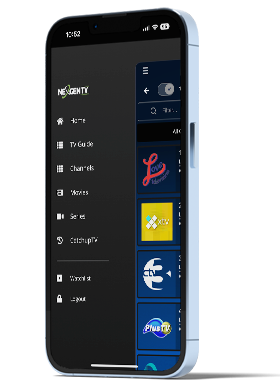
NEXGEN TV on a portable/handheld device
Enter your provided login credentials
Note: You must provide a VALID & ACTIVE email address to receive your personal login credentials. Contact us for your login credentials and subscription
- Open the app
- Select English or Spanish
- Enter your login credentials
- Enter the Service ID – 460
- Click Submit
- Enter your provided User ID and Password
- Click Sign In
- Select or Add a Profile
- Tap your profile icon
- Select the hamburger icon to reveal the Menu Option in the top left corner. Choose from CHANNELS / MOVIES / SERIES / CATCHUP TV
- Start watching!
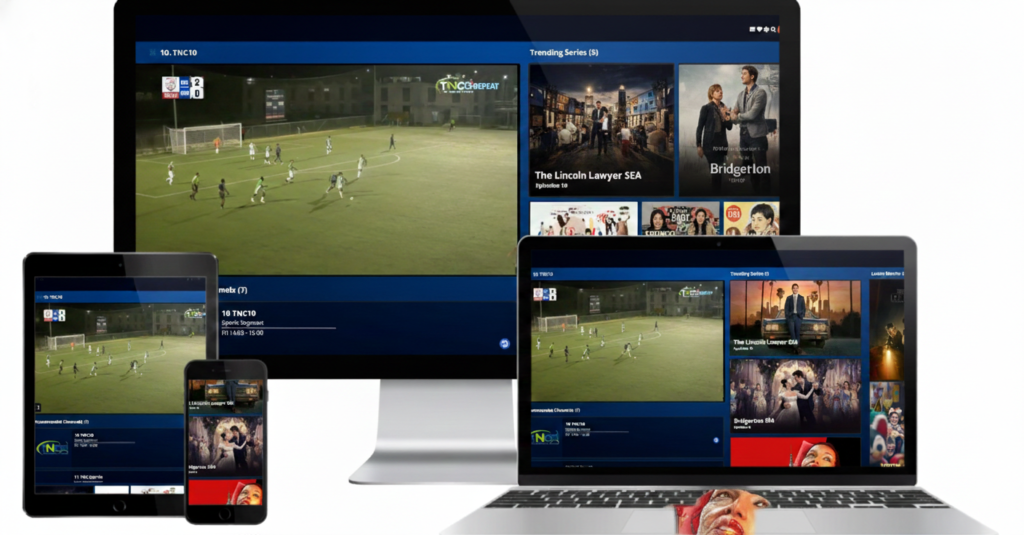
NEXGEN TV on a Smart TV or Media Streaming Device
- Determine what kind of smart TV you have. The exact layout and interface of your smart TV can vary by model or manufacturer.
- Connect your TV to your home/WiFi network to stream NEXGEN TV from your smart TV, the device will need to be connected to the internet. You'll usually do this through Wi-Fi, but many TVs also support a wired connection.
- Note: If your TV is not a smart TV, you can still download NEXGEN TV with the use of a Roku Streaming Stick, Fire TV Stick or Google Chromecast or Dongle Device. The device will then need to be plugged into your TV’s HDMI portal.
- Download the NEXGEN TV app from the appstore
- Using your TV remote, navigate to open the NEXGEN TV app from the home screen. It’s a blue icon with the “Nexgen TV” logo in white. If you cannot find the NEXGEN TV app, use the magnifying glass icon to search for and download the app.
- Enter the username and password associated with your NEXGEN TV account. If you have more than one profile on your NEXGEN TV account, select the profile you want to use or tap the + icon to create a new profile.
- Welcome to the home screen interface. Find and play content.
Watching Movies and Series:
Use the arrow buttons on your TV remote to navigate the Menu option on NEXGEN TV [on the left side of the screen]. Choose from CHANNELS / MOVIES / SERIES / CATCHUP TV / TV GUIDE
To view MOVIES / SERIES:
Highlight a tile and press the Select, Enter, or Ok button on your remote to select the content. If you want to watch a movie, Select the PLAY MOVIE option. To view the trailer, Select PLAY TRAILER
To watch a series, navigate to highlight the black bar to select the Season you would like to start watching. Navigate to the episode and press Select, Enter, or Ok button to play the episode.
The Search Option:
To search for a movie or TV show by name, select the magnifier icon on your TV screen. Use the on-screen keyboard to enter the name of the TV show or movie, navigate down to highlight the tile, and press the Select, Enter, or Ok button on your remote to view your selection.
Playback/Rewind/Forward an episode:
You can then use your remote to control the playback while the video is playing. Simply select the arrow down button to reveal the playbar on your TV.

- Select the middle button to pause or play the video.
- Select the inner left and right arrows to rewind or fast-forward the video.
- Select the outer left and right arrows to skip to the next episode.
CatchupTV/Replay TV
To go back and rewatch a live program, select CatchupTV from the menu options. Navigate to the Channel from the list of Channels, select the Date the program aired, then from the list of Programs select the time slot the program aired or the program title. Press the Select, Enter, or Ok button on your remote to start watching.
You can also rewatch a program by selecting TV Guide. At the top of the screen, you can navigate and select the date and Channel, and program hour.
LIVE TV - Watch Live TV:
From the Menu Option on the left of the screen, select the Channels option.
Navigate through the list of All Channels or select the dropdown (black bar) to search channels by category.
If you’d prefer to flip Channels, you can select the Television icon and flip channels by using the left and right arrow buttons on your TV remote. You can also search for the TV Program by name. To search for a channel or live program by name, select the magnifier icon.